 Ambry
Help / Add items
Add items
Tap Add at the bottom of the Kitchen screen and choose how. Scanning is fastest when you unpack shopping.
Scan barcodes
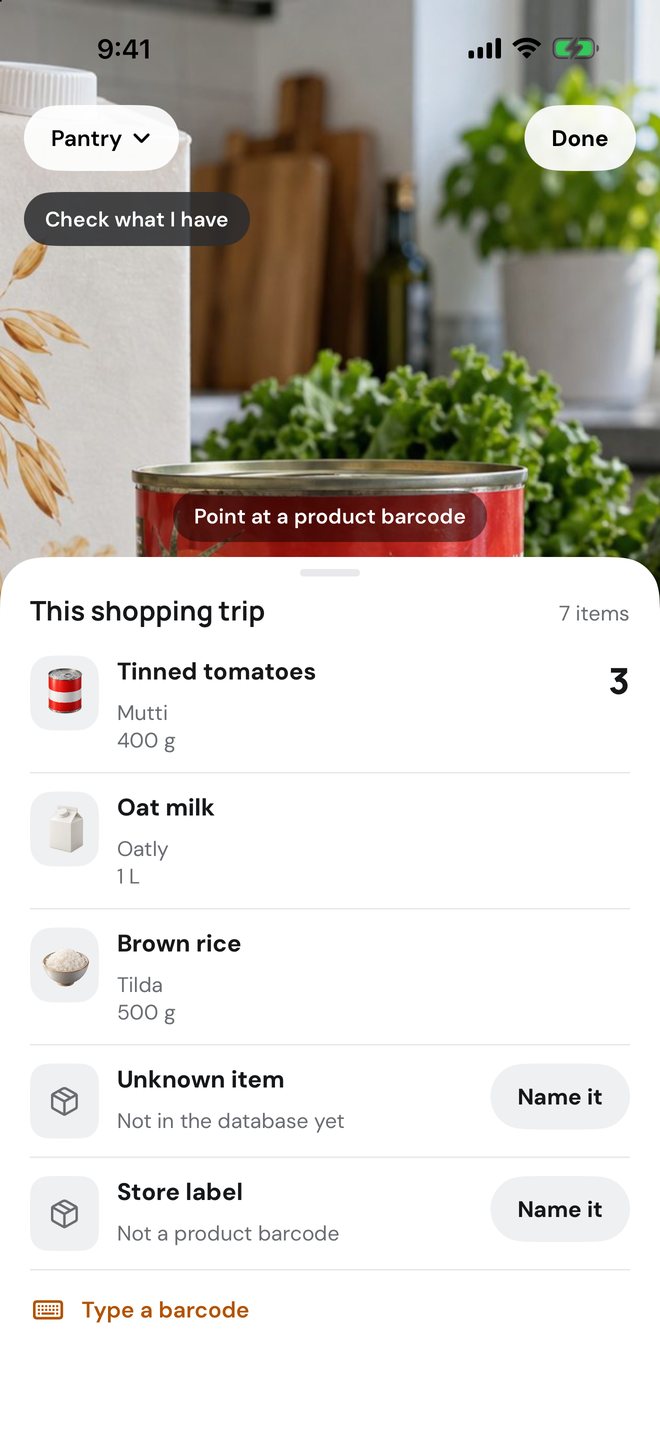
Tap Add, then Scan barcodes, and point the camera at a product barcode. Each item drops into the tray and you can keep scanning. Scan the same product again to count one more.
Use the chip at the top left to choose where the items go, then tap Done.
If a product is not in the database yet, tap Name it on its row and type the name or snap the front of the pack. If a barcode will not scan, tap Type a barcode.
Type it in
Tap Add, then Type it in. Enter the name, how many, and a best-by date if you know it. Brand, size, location and category are under More details. Tap Save and you are back in the kitchen.
Snap a photo
Tap Add, then Snap a photo, and photograph the front of the product. Ambry reads the name, brand and size and fills them in. Check them, then tap Save. Nothing is saved until you do.
Use things up
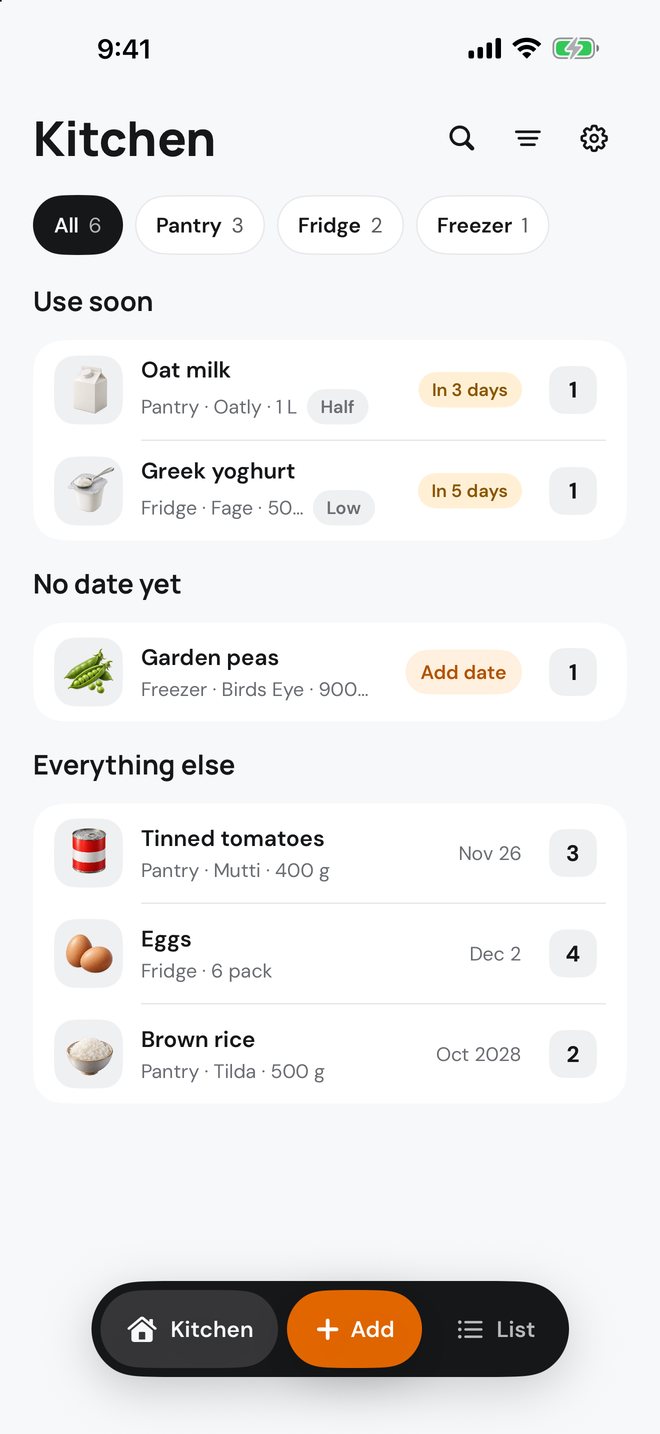
Swipe a row to Use one or mark it Used up, or tap the number on the right to change the amount. An Undo appears for a few seconds.
When an item runs out it is added to your shopping list.
Still stuck?
Tell us what you see and we will help. Contact support.