 Ambry
Help / Best-by dates and reminders
Best-by dates and reminders
Items with a date move up the Kitchen list as the date gets close, and Ambry can remind you before they expire.
Add a date from the Kitchen
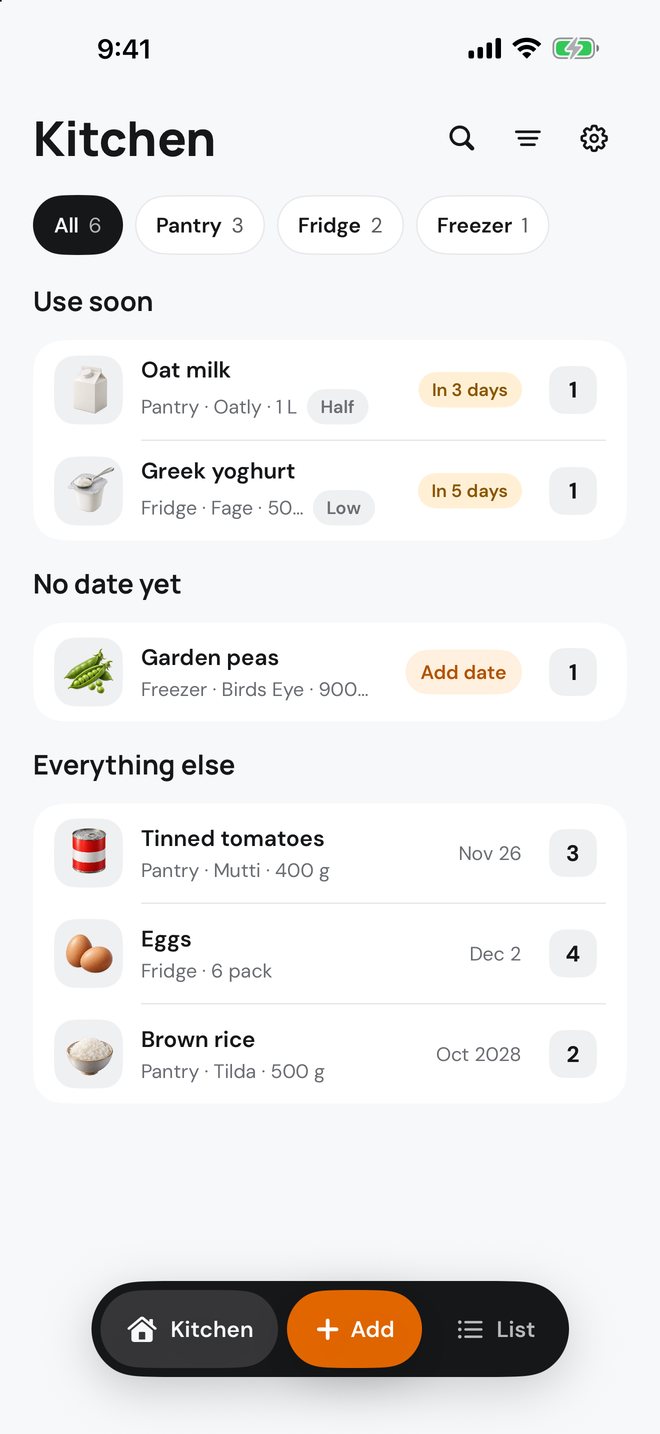
Items without a date sit under No date yet. Tap Add date on a row and pick one of the suggestions, or choose an exact date.
Add dates to several items
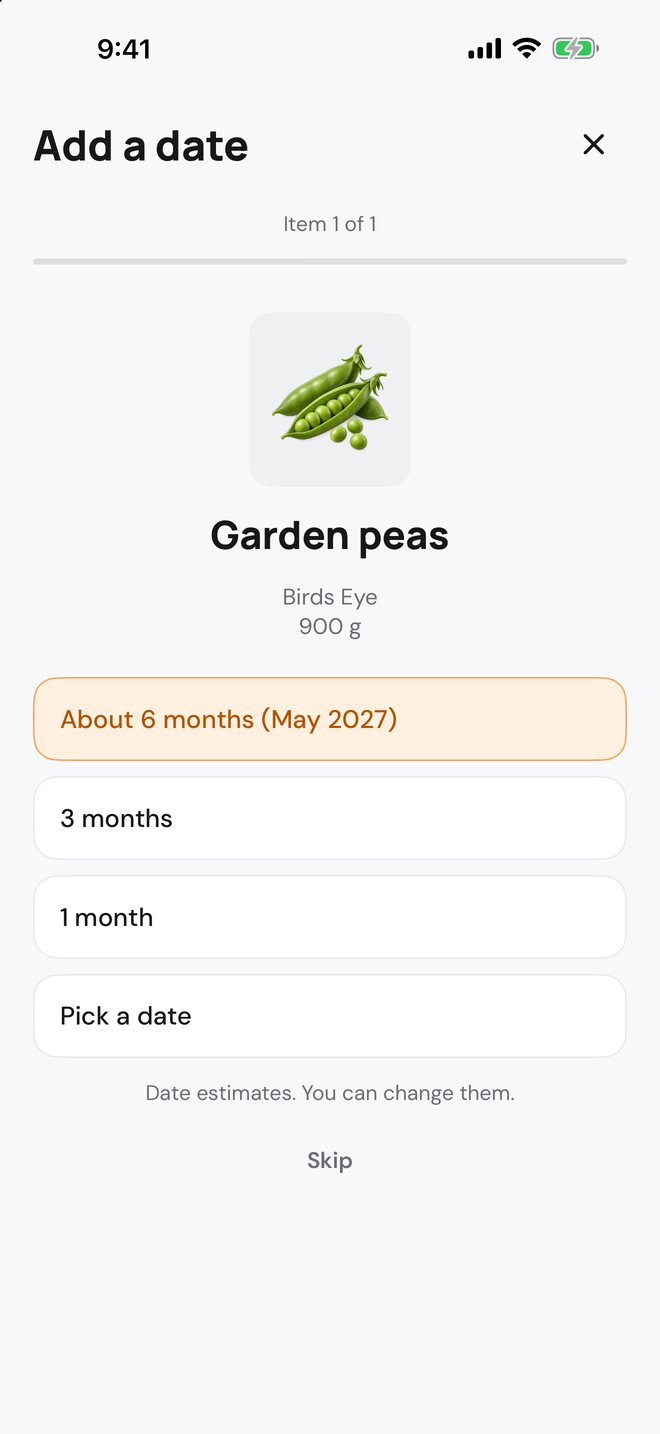
Tap Add dates next to No date yet to go through the items one by one. Ambry suggests a typical shelf life for each. These are estimates, and you can change them at any time from the item's details.
Turn on reminders
The first time you set a date, Ambry asks to send notifications. Allow them to be reminded on the expiry date.
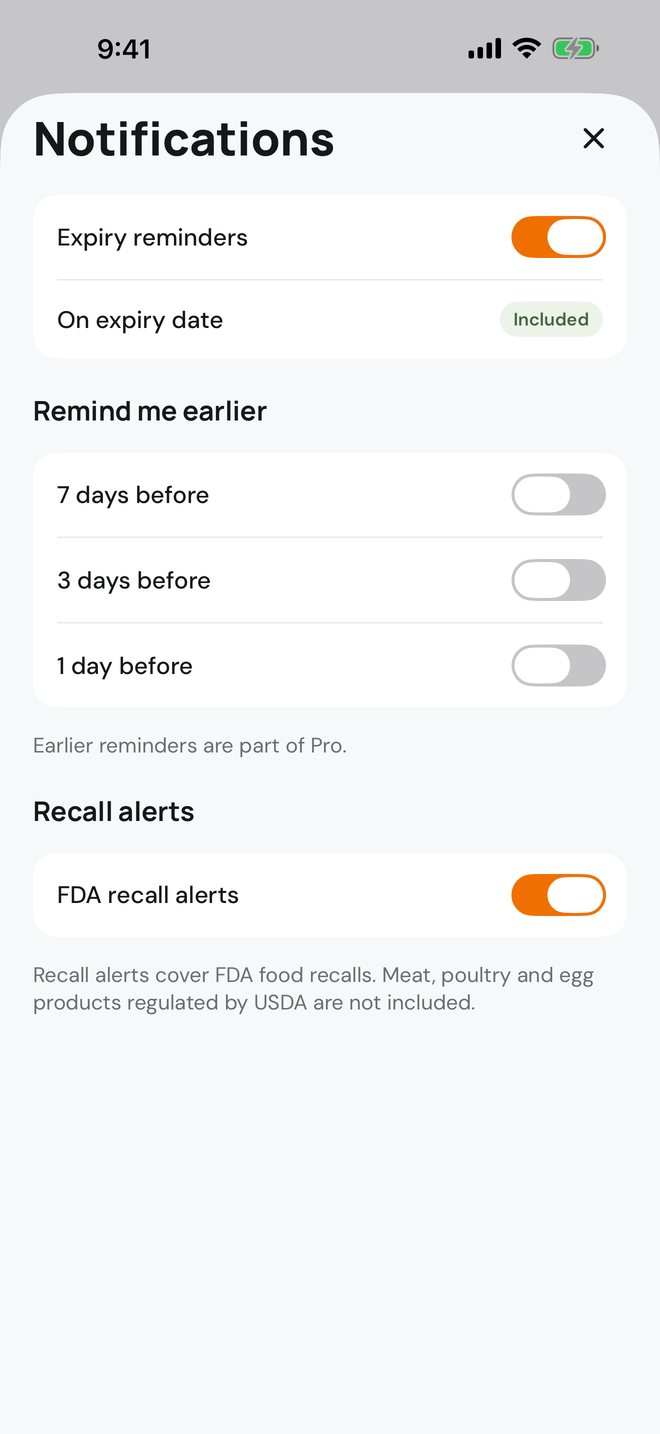
To change this later, open Settings and tap Notifications. With Ambry Pro you can also be reminded 7, 3 or 1 day before.
If you said no at first, turn notifications on for Ambry in the iPhone's Settings app.
Still stuck?
Tell us what you see and we will help. Contact support.