 Ambry
Help / Share your kitchen with your household
Share your kitchen with your household
One person creates a household and invites the others. Everyone then sees the same inventory and shopping list.
Check what you need
- The person who creates the household needs Ambry Pro. The people they invite do not.
- Everyone needs Ambry installed and must be signed in to iCloud on their iPhone or iPad (Settings, then your name at the top).
- Each person uses their own Apple Account.
Apple's Family Sharing is something else. It shares the Ambry Pro purchase with your family group. It does not share your inventory. To share the inventory, follow the steps below.Open Household sharing
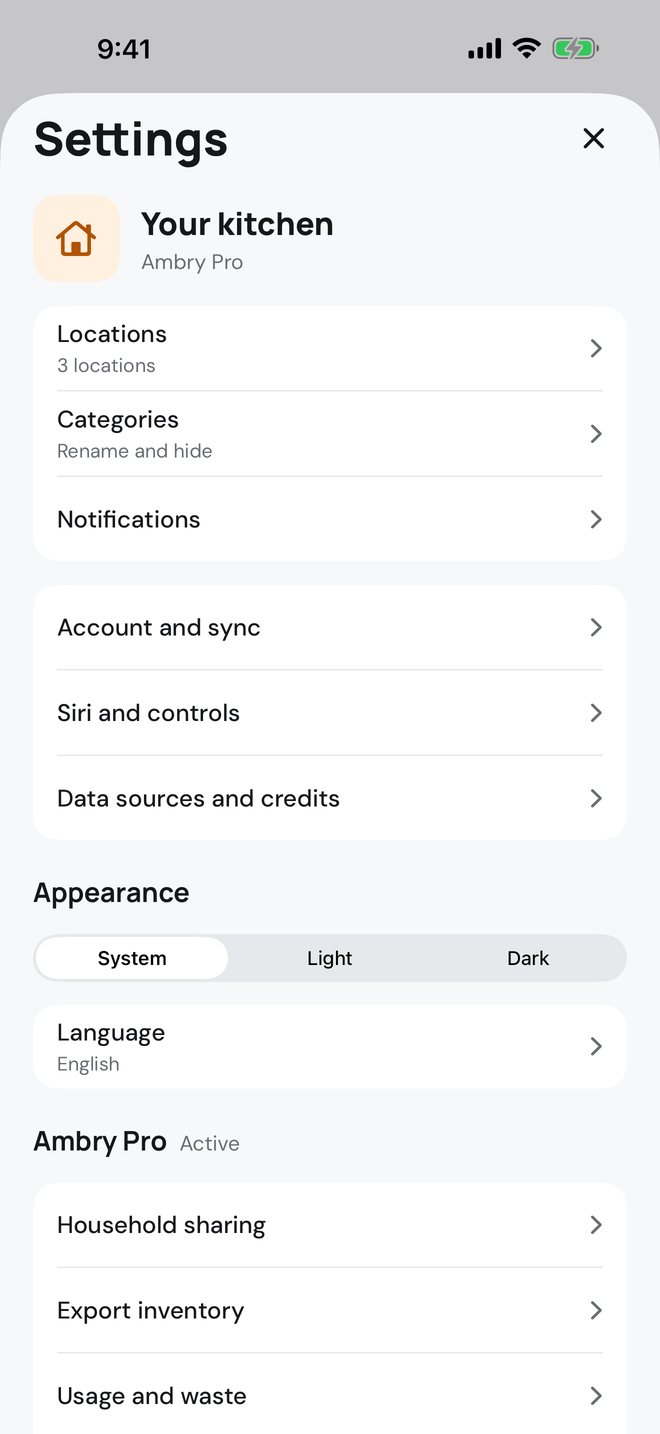
On the Kitchen screen, tap the gear icon at the top right to open Settings. Under Ambry Pro, tap Household sharing.
Create the household
The first time, Ambry asks you to Sign in with Apple. This is only used to set up and manage the household.
Then type a name, for example "Our kitchen", and tap Create household. Your whole kitchen moves into the household. Nothing is deleted.
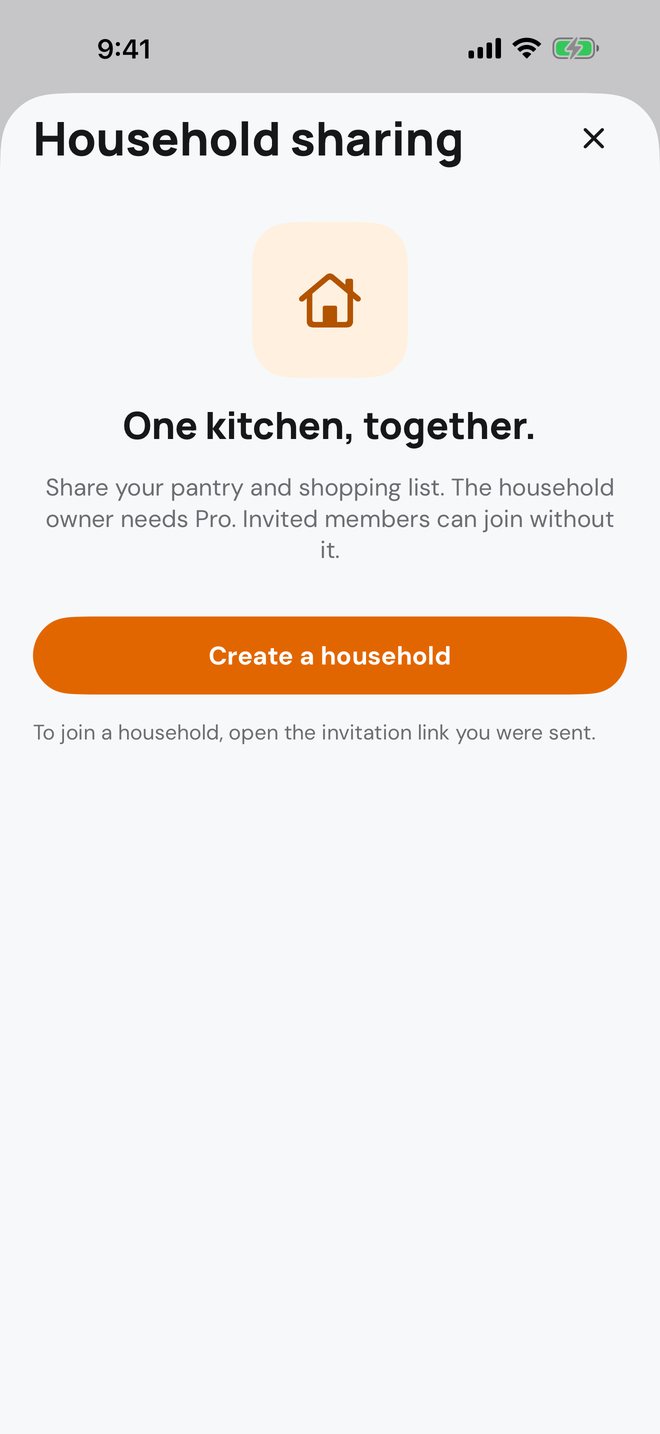
If you do not have Pro yet, this screen shows Create a household and opens the Pro plans first.
Invite a member
The iCloud invitation sheet opens as soon as the household is created. Choose how to send it, for example Messages or Mail, and pick the person.
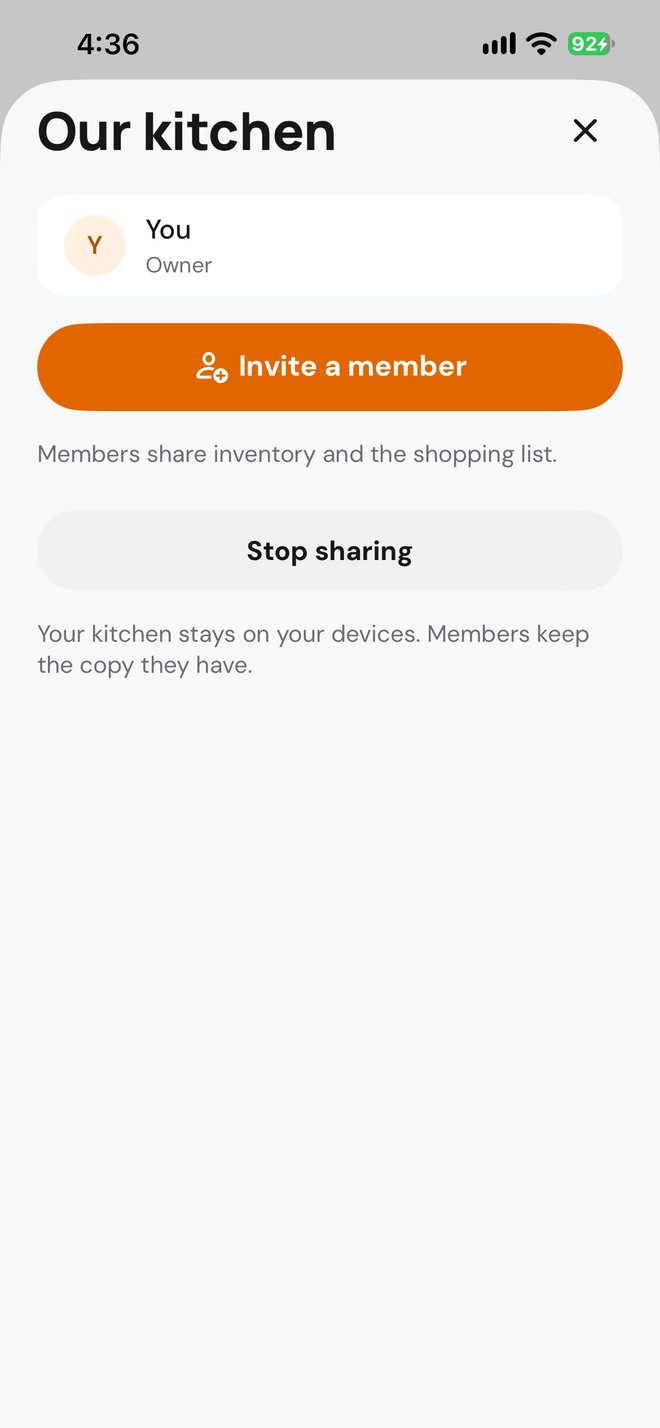
To invite someone later, come back to this screen and tap Invite a member. Send the invitation to the phone number or email address of their Apple Account.
The other person joins
They tap the invitation link on their iPhone. Ambry opens and shows You joined with the household name. The shared items appear after a moment.
Items they already had stay in the kitchen and become part of the household.
If it does not work
- "iCloud did not take the change. Try again in a moment."
- Check that you are online and signed in to iCloud, wait a minute, then try again. If it keeps happening, contact support and tell us which step you were on.
- "Sign in to iCloud in Settings to share your kitchen."
- Open the iPhone's Settings app and sign in with your Apple Account at the top, then return to Ambry.
- "Ambry could not reach iCloud."
- Check your internet connection and try again.
- "Your iCloud storage is full."
- Make room in Settings, your name, iCloud, then try again.
- "This invitation is no longer active."
- Ask the owner to send a new invitation from Invite a member.
- "Open the invitation again and confirm your Apple Account to join."
- The invitation was sent to a phone number or email that is not on your Apple Account. Open the link again and follow Apple's prompt to confirm it, or ask the owner to invite the address your Apple Account uses.
- "You own a household. Stop sharing it before you join another."
- You can be in one household at a time. Stop sharing your own first, then open the invitation again.
- The other person joined but sees no items
- Give it a minute on a good connection, then close and reopen Ambry on both phones.
Leaving and stopping
- Remove a member: the owner taps Remove next to their name. They stop seeing your inventory and shopping list.
- Leave household: a member can leave at any time. Their iPhone keeps a copy of the kitchen as their own, and new changes stop arriving.
- Stop sharing: the owner ends the household. The kitchen stays on the owner's devices, and members keep the copy they have.
Still stuck?
Tell us what you see and we will help. Contact support.